All docs pages
Your First Session
A 10-minute orientation to the StrikeGEX workspace: the top bar that tells you what the market is doing and how fresh your data is, the tabs you'll live in, and the Quick Tour that runs the first time you sign in. By the end you'll know where everything is and where to read deeper.
- The Quick Tour auto-runs on your first visit — 6 short steps. Take it. Replay it anytime with the ❓ button.
- The top bar shows the market session, a countdown to the next update, a connection dot, and a data-age chip that reads just now when data is fresh.
- Four tabs: HeatMap - 0DTE, StrikeMap, StrikeChart, History. Number keys 1–4 select them; R refreshes. HeatMap (1) and StrikeChart (3) are open to everyone; StrikeMap (2) and History (4) are upgrade features and prompt you to upgrade on a Trial.
- Start on HeatMap — colored strikes and key-level chips per symbol.
- Your 👤 Account menu holds Dashboard, Billing, Settings, and Discord.
- Everything here is educational — the top bar says so, and it means it.
1. Take the Quick Tour
The first time you open the app, a 6-step Quick Tour runs automatically. It walks you past the main surfaces in order:
- Navigation Tabs — how to switch between StrikeMap, HeatMap, and Chart.
- Heatmap Panel — one panel per symbol, showing gamma exposure at every strike.
- Flow King 👑 — the strongest directional 0DTE flow magnet near the current price.
- Color Guide — what the colors mean (yellow and purple; more below).
- View Controls — pick your signal, expiration, and how many strikes to show.
- Your Account — where alerts, preferences, and your subscription live.
Each step has Skip, Next →, and a final Done. There's no penalty for skipping — but on a first session, the tour is the fastest way to build a mental map.
2. Read the top bar
The top bar is your at-a-glance status line. Left to right, the pieces you care about:
| Element | What it does |
|---|---|
| Market session pill | Names the current session in Eastern Time: PRE-MARKET, 🔔 OPENING, MARKET OPEN, ⚡ POWER HOUR, AFTER HOURS, CLOSED, WEEKEND, or HOLIDAY. It's the first thing to glance at — it tells you whether the tape is live. |
| Countdown | Reads Next update in m:ss and ticks down to the next refresh. When it hits zero it briefly shows Updating.... |
| Connection dot + status | A small dot with a status label. On startup it reads Connecting...; once connected it shows Live · 10:32 (the time of the latest data) during the session. |
| Data-age chip | How long since the data last updated. Its tooltip says Time since last data update. |
The data-age chip is worth learning to read, because it's your freshness signal. It moves through three states as data ages:
- just now or 30s ago — fresh, current.
- Around a minute and a half in, it changes color and starts reading like 1m 40s ago — data is getting stale.
- A few minutes in, it changes again and reads like 3m ago — old; treat the numbers as a snapshot, not the live tape.
During market hours you should mostly see the fresh state. A chip that has drifted to the stale or old color usually means the connection hiccuped — a manual refresh (below) or a page reload will pull the latest. See Data Freshness for the full read on staleness.
3. Learn the tabs (and their shortcuts)
Four tabs run across the top. Each has a number-key shortcut so you can move without reaching for the mouse:
| Control | What it does |
|---|---|
| 1 → HeatMap - 0DTE | Today's 0DTE gamma exposure by strike, per symbol. Your home base. |
| 2 → StrikeMap 🔒 Upgrade | Scans the full strike matrix for any symbol across expirations. An upgrade feature — on a Trial the key prompts you to upgrade instead of opening the tab. |
| 3 → StrikeChart | Plots how the key levels moved through the session, on candles. |
| 4 → History 🔒 Upgrade | Session snapshots so you can look back at earlier positioning. An upgrade feature — on a Trial the key prompts you to upgrade instead of opening the tab. |
| R | Refresh — pull the latest data on demand instead of waiting for the countdown. |
4. Start on HeatMap
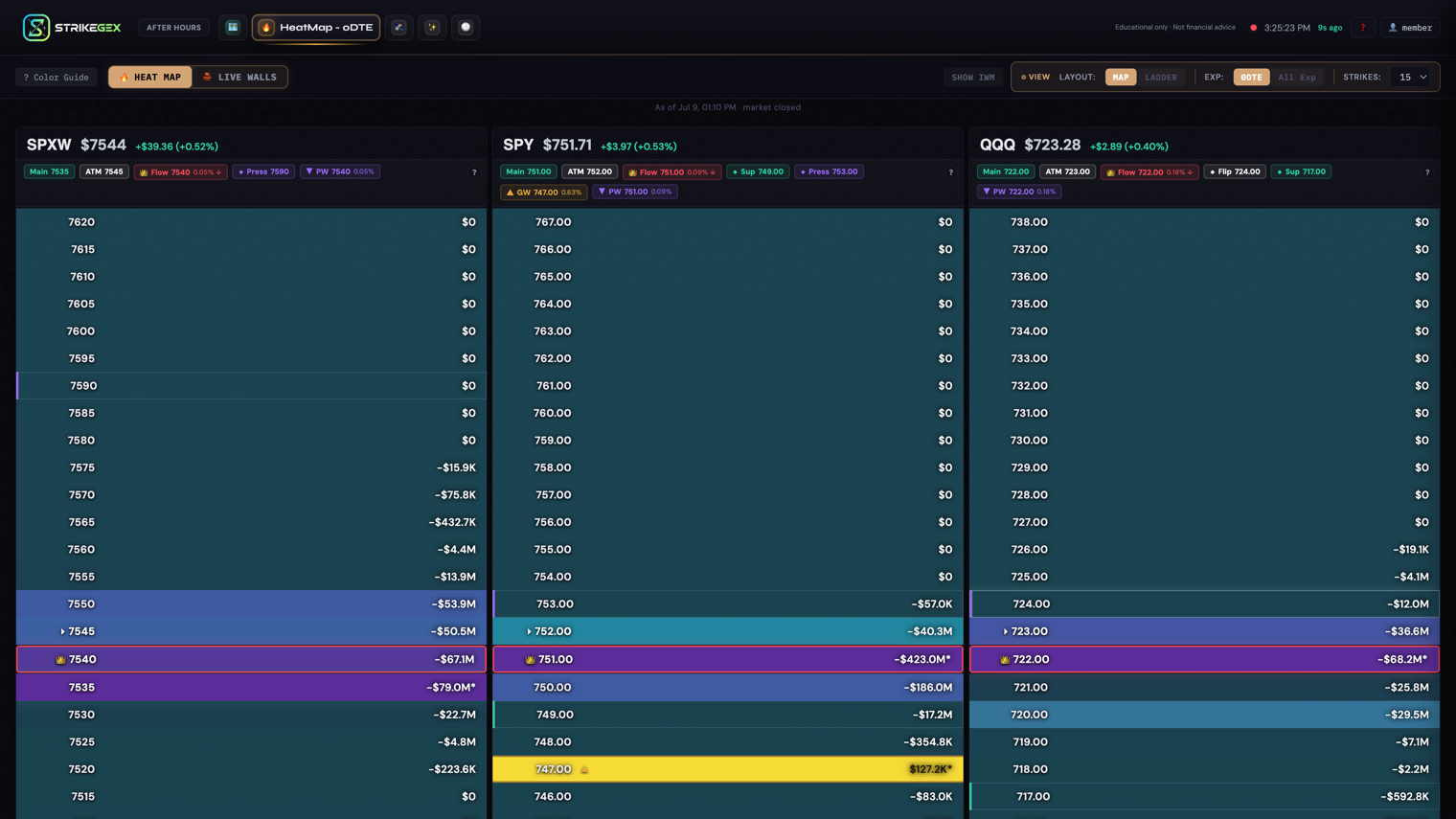
New sessions open on the HeatMap. Here's what you're looking at in the first ten seconds:
- Symbol panels. Each tracked symbol gets its own panel. The header shows the current price and the key levels for that symbol.
- Colored strikes. Strikes are colored by gamma sign. +Gamma is yellow — a mean-reverting tape, where price tends to get pinned. −Gamma is purple — a momentum tape, where moves tend to extend. Neutral is dim.
- Key-level chips. The header calls out 👑 Flow King (the strongest directional flow magnet near spot), Main Level (the actionable near-price level), and ATM / Active (the strike nearest live spot).
- Bar size = relative magnitude. Wider bars mean a stronger level. Compare bars against each other on the same panel; bigger simply means more exposure sits there.
Don't worry about interpreting all of this yet — the point of the first session is to recognize the pieces. The ? Color Guide button on the legend expands a plain-language explanation whenever you want it, and Reading StrikeGEX Levels is the deep read.
5. The Account menu
Click 👤 Account in the top-right to open your menu. For members it holds:
- 📊 Dashboard — your profile snapshot and quick actions.
- 💳 Billing & Card — manage your plan and payment method.
- ⚙️ Settings — preferences and alert configuration.
- 💬 Join Discord — jump to the member Discord.
- 🚪 Sign Out.
You can set up price and gamma alerts from here too — see Alerts & Account.
Common questions
- The Quick Tour closed and I want it back. How?
- Click the ❓ button in the top-right. It replays the same 6 steps. Nothing you do in the tour changes your data or settings.
- My data-age chip says a few minutes ago. Is something broken?
- Usually not. During the session the chip should sit on just now or a few seconds. If it has drifted and changed color, press R or reload the page to pull the latest. If it stays stale, check Data Freshness.
- The session pill says CLOSED but I still see levels. Why?
- Outside market hours the app shows the most recent snapshot, so the structure is still visible for study. The pill and the data-age chip together tell you it's not live — treat the numbers accordingly.
- Which tab should I start on?
- HeatMap (1) for today's 0DTE picture. It's where new sessions open and the fastest place to see current positioning at a glance.